DOCSUPRA › HEIC file not accepted · Español
“File type not supported” — your iPhone saved it as HEIC
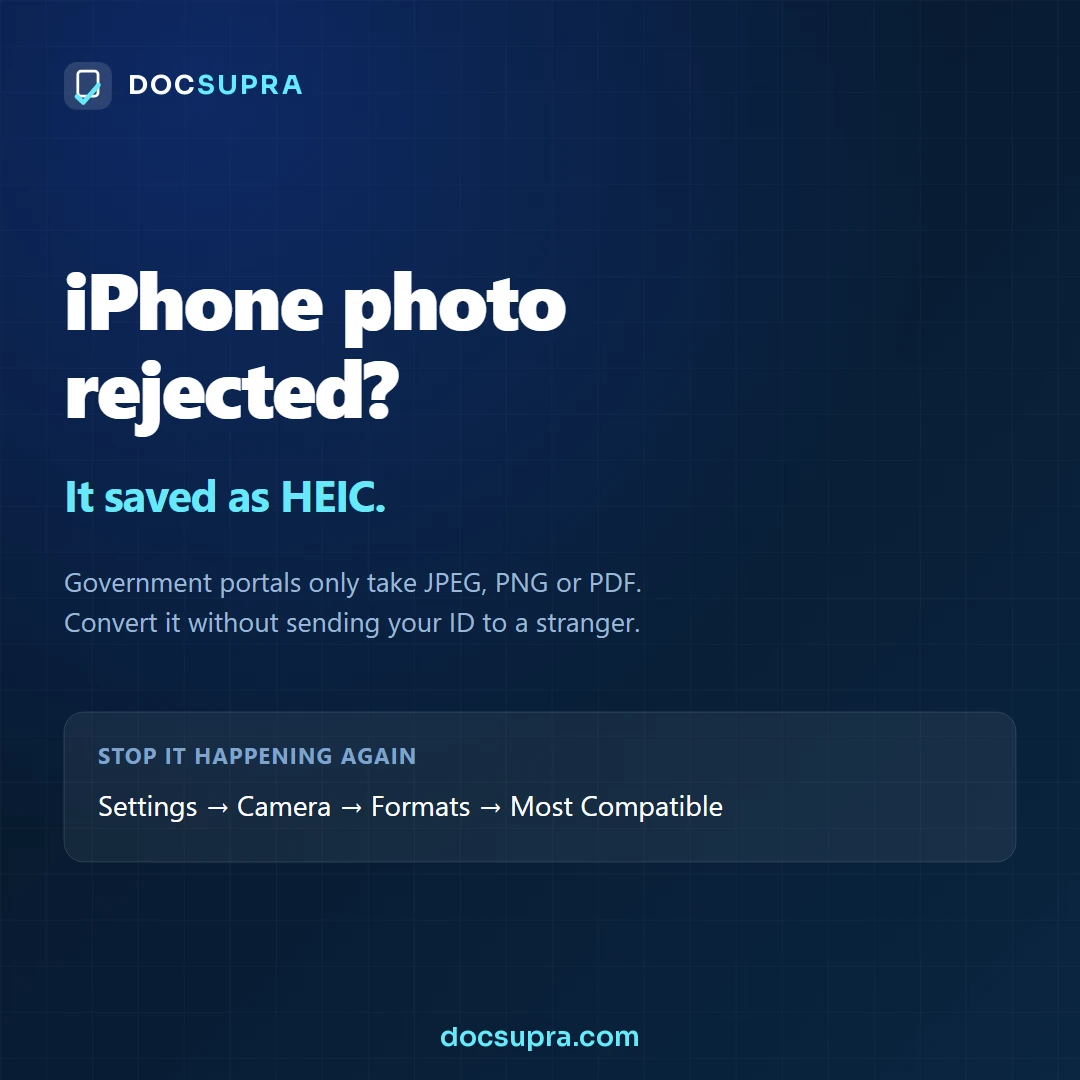
The short answer. Your file ends in .HEIC. Convert it to
JPEG (for a photo) or PDF (for a document) and upload again. To stop it
recurring: Settings → Camera → Formats → Most Compatible.
You photographed the document, the portal refused it, and nothing looks wrong with the picture. Almost always the problem is the format, not the photo: since 2017 iPhones save as HEIC by default, and most government upload forms only take JPEG, PDF or PNG.
How to tell that this is your problem
Any one of these is a giveaway:
- The file name ends in
.heicor.HEIC. - The portal says file type not supported, invalid format, or just fails silently.
- The photo opens perfectly on your iPhone but looks broken or will not open on a Windows PC.
- You emailed it to yourself and it arrived as a
.jpg— iOS converts on the way out, which is why the same picture sometimes works and sometimes does not.
Why portals reject it
HEIC (High Efficiency Image Container) stores the same picture in roughly half the space of a JPEG. Apple made it the default in iOS 11. The trouble is that the software behind an upload form is often older than that, and a reviewer opening the file on a government workstation may have nothing that can read it. Rather than risk an unreadable submission, the portal refuses the format outright.
It is not a judgement about your photo. A perfect, sharp, well-lit HEIC is rejected exactly as fast as a bad one.
Which format should you convert to?
| What you are uploading | Convert to | Why |
|---|---|---|
| A form, letter, statement or certificate | Keeps several pages in one file, and is what most portals prefer for documents. | |
| A photograph of a person (visa or passport photo) | JPEG | Photo forms are usually JPEG-only, with strict pixel and size rules. |
| An ID card or anything with a seal or hologram | JPEG or PDF, in colour | Colour security features have to stay visible. |
Stop it happening again
- Open Settings on your iPhone.
- Tap Camera, then Formats.
- Choose Most Compatible.
From then on the camera saves JPEG. Photos already in your library stay HEIC — this only changes what happens from now on.
Careful with random converter sites. A document you are uploading to an agency is usually one that identifies you. Uploading it to an unknown converter to change a file extension means handing your ID to a stranger’s server. Convert it on your own device instead — DOCSUPRA does the conversion in your browser, and the file is never transmitted anywhere.
Convert an iPhone photo to JPEG or PDF, in your browser
Runs in your browser. Your document is never uploaded. See the finished result before you pay.
Open DOCSUPRARelated
Doing this for clients, not for yourself? DOCSUPRA for teams adds the batch queue, one combined PDF per matter and a dated compliance report — still with nothing uploaded.
What it costs
See the finished file first — sharp on screen, 100% with the lens, no card and no account.
Prices are in USD and exclude any tax that applies in your country; Stripe calculates it and shows it before you pay.
See the full comparison →