DocSupra › Document too large to upload · Español
Your document is too large to upload. Here is how to fix it properly.
DocSupraCompliance Studio
Fix this file now
Drop the document here: it opens in the Compliance Studio, which asks where it is going. Nothing is uploaded.
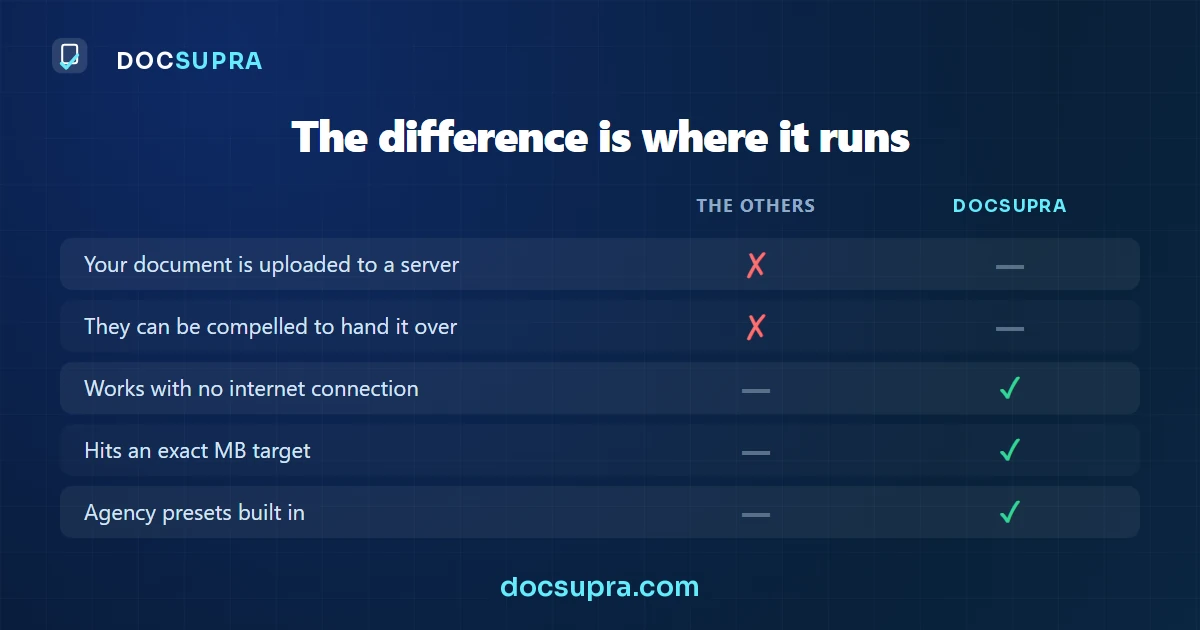
Your browser reads the file on this device: DocSupra never uploads it. You see the finished file before you pay; paying is only for the download. Terms · Privacy
Why correcting the lighting shrinks the file. Compression spends bits describing variation. A shadow gradient across a page is variation, so a large share of your file is describing the shadow rather than the text. Flatten the lighting and that share disappears — you get a smaller file and better text, which is the opposite of the usual trade-off.
Almost everyone reaches for the quality slider first. That is the one control that destroys text. Resolution, colour mode and correcting the lighting all reduce the file more, and cost you far less.
Do these in order
| # | Change | Typical reduction | Cost to legibility |
|---|---|---|---|
| 1 | Correct lighting and angle first | 30–60% | None — it improves |
| 2 | Bitonal instead of colour (text documents) | Up to 90% | None for printed text |
| 3 | Reduce to 300 DPI | 50–75% from a phone photo | None for a reviewer |
| 4 | Crop away the desk and margins | 10–30% | None |
| 5 | Lower the JPEG quality | Varies | High — do this last |
Common limits
| Destination | Limit | Formats |
|---|---|---|
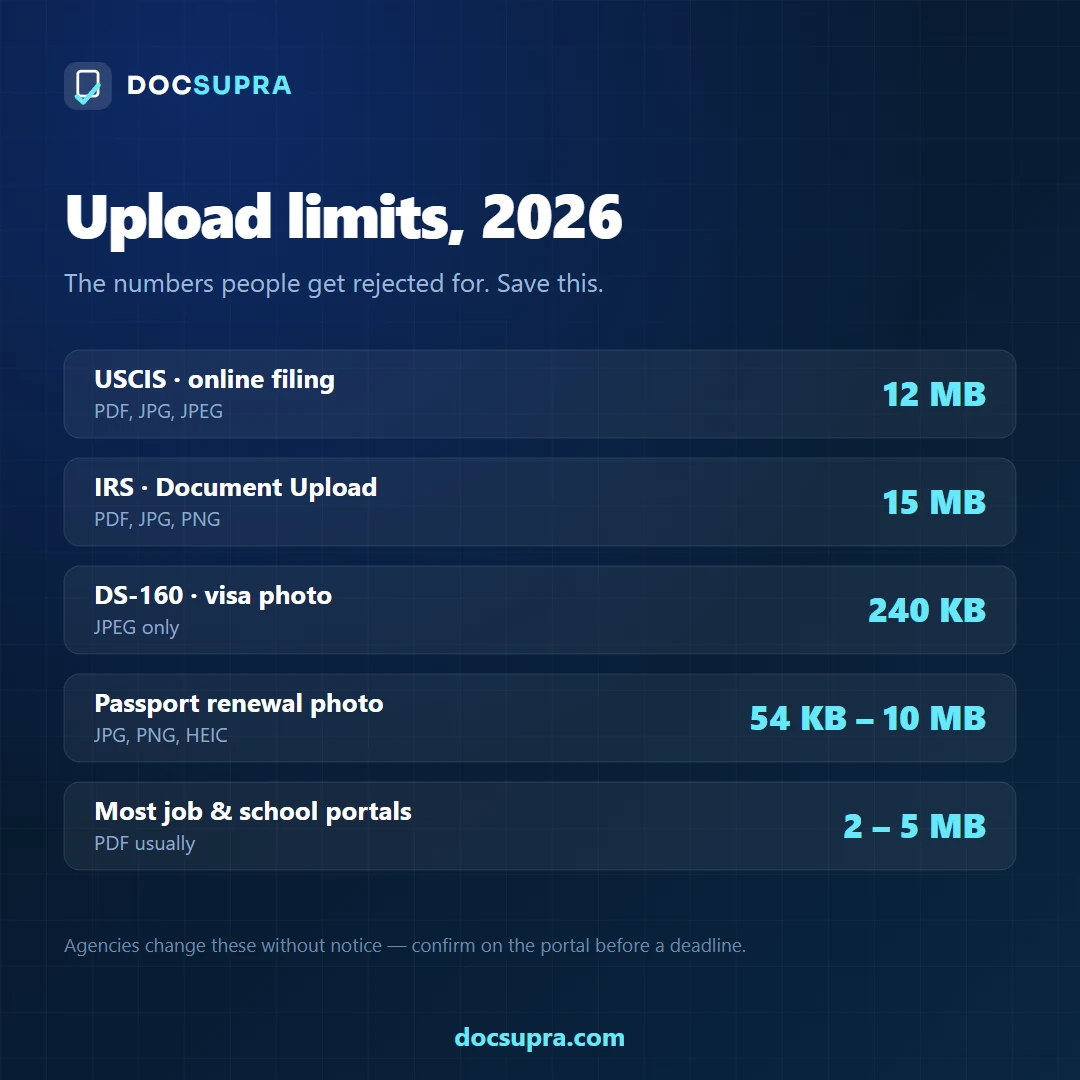
| USCIS online filing | 12 MB per file | PDF, JPG, JPEG |
| IRS Document Upload Tool | 15 MB per file | JPEG, PNG, PDF |
| DS-160 visa photo | 240 KB | JPEG only |
| Passport photo (online renewal) | 54 KB – 10 MB | JPG, JPEG, HEIF |
These four were checked against official sources in August 2026. Every other portal sets its own number — university applications are often 1–2 MB, banks around 5 MB — so take the figure from the page you are uploading to.
Bitonal, greyscale or colour?
- Bitonal (pure black and white) — printed text documents: tax forms, contracts, transcripts, statements. Dramatic size reduction, no loss for printed type.
- Greyscale — documents with an embossed seal, a signature, or a faint stamp that a hard threshold would erase. Certificates especially.
- Colour — anything with a photograph or a security feature: IDs, passports, visas. Banks and KYC reviewers generally want to see the original colours.
Do not send a bitonal scan of an ID card. Converting a photograph to pure black and white turns a face into unreadable blobs. For anything with a portrait or a hologram, keep colour and reduce the size by lowering the resolution instead.
Hit an exact file size limit, whatever the number
Runs in your browser. Your document is never uploaded. See the finished result before you pay.
Open DocSupraYour PDF is too large to email
The short answer. Gmail allows about 25 MB per message and swaps anything larger for a Drive link. Outlook.com is around 20 MB, and corporate Exchange servers are often configured lower still. Assume the recipient's limit is 10 MB unless you know otherwise.
Gmail stops at roughly 25 MB per message, and many corporate servers stop lower. A scan of a ten-page contract can be 60 MB, which is not because it has a lot in it — it is because of how it was captured.
Why the scan is so big
A phone photograph of a page is a full-colour image with sensor noise in every pixel, a shadow gradient across the paper and a texture in the desk behind it. Compression has to describe all of that, and none of it is the document. Ten such pages in a PDF wrapper is routinely 50–80 MB.
The same ten pages, evenly lit and converted to bitonal, are often under 2 MB — with the letters sharper than the original, because bitonal keeps edges rather than blurring them.
The order that works
- Even out the lighting first. This alone often removes most of the size, because the shadow gradient was consuming the compression budget.
- Drop to 300 DPI. Higher resolution adds size and adds nothing a reader uses.
- Use bitonal for typed pages. Keep colour only for pages with a photograph, a coloured seal or a signature that matters.
- Set the target on the finished file, not on each page separately.
When you cannot get under the limit
If the document genuinely needs colour at full resolution — a set of photographs, a plan, a certificate with security printing — splitting it into two emails is more reliable than compressing it until it fails its purpose. Name the files "1 of 2" and "2 of 2" so nothing gets read as missing.
A cloud link is not always acceptable. Some legal, HR and government recipients cannot open external links at all, and a message whose attachment silently became a Drive link can be read as an incomplete submission.
How to compress a PDF to 2 MB without wrecking the text
There are exactly two levers: how many pixels the page has, and how hard those pixels are compressed. They fail in different ways. Pull the wrong one and the file hits the limit but the decimal points disappear.
The short answer. Reduce the resolution first, and only then the quality. Dropping a page from 300 DPI to 200 DPI removes about 55% of the pixels and usually leaves the text perfectly readable. Dropping JPEG quality far enough to do the same job attacks the thin strokes — commas, decimal points, accents — which are the characters that matter.
Why resolution is the safer lever
Halving the DPI quarters the pixel count, because it applies to both dimensions. From 300 DPI to 150 DPI a Letter page goes from about 8.4 megapixels to 2.1 — a 75% cut before any compression is even considered. Text remains readable at 200 DPI on almost any typed document; what suffers first is a fine security pattern or a signature in light ink.
| DPI | Pixels on a Letter page | Share of the 300 DPI size |
|---|---|---|
| 300 | 2550 × 3300 = 8.4 MP | 100% |
| 250 | 2125 × 2750 = 5.8 MP | ≈ 69% |
| 200 | 1700 × 2200 = 3.7 MP | ≈ 45% |
| 150 | 1275 × 1650 = 2.1 MP | ≈ 25% |
Why quality is the dangerous one
JPEG compression works in 8 × 8 blocks and throws away the finest detail first. On a photograph that is invisible. On a page of text it is the opposite: the finest detail is the content. Push the quality low enough and a comma becomes a smudge, a decimal point disappears, and a 3 starts to look like an 8. The page still looks clean at a glance, which is what makes it dangerous.
The third lever, when the page is text only
A page with no photograph, no coloured seal and no signature to compare can go bitonal — one bit per pixel instead of twenty-four. A 6 MB colour scan of a typed page commonly lands between 40 and 90 KB. Do not do this to anything with a photograph, a coloured stamp, a wet-ink signature or security printing: those need the greys and the colour to stay meaningful.
What not to do
- Do not go below the DPI the destination asks for. Hitting 2 MB at 100 DPI on a filing that requires 300 DPI trades one rejection for another.
- Do not compress twice. Each JPEG re-save compounds the damage, and the second pass has less to work with than the first.
- Do not crop off the margins to save space. The saving is negligible and a reviewer may read a missing border as a missing part of the document.
Hitting an exact number
"Under 2 MB" is a ceiling, not a target. The right result is as close under it as the document allows, because every megabyte you give away is detail the reviewer does not get. Aim to land just below the limit rather than far under it.
“Smaller without losing quality” is not quite true. Here is what is true.
The short answer. Making a file smaller always removes something. The honest question is what. In a photographed document, most of the weight is sensor noise, the colour of white paper and the gradient of the room light — none of which is your document. Remove those and the file collapses while every character stays exactly where it was. Shrink the pixels instead and the text softens, which is the one loss that actually costs you.
You need it under a number by tonight, and every result you have tried has come back either still too big or too blurry to read.
The 5 reasons, in plain words
- Noise is the heaviest thing in the file. The speckle across the white areas of an indoor photo is random, and random data is the most expensive kind to compress. Flattening it is nearly free in quality.
- Colour you are not using. A black-and-white form stored in full colour carries three channels where one would do. Converting deliberately — not by accident — cuts it hard.
- The lighting gradient. A page that is brighter on one side costs bytes across every block of the image. Flattening the light removes weight and makes the page more legible at once.
- Resolution is the last lever, not the first. Dropping pixels is what makes text mushy. It should only happen after the other three, and only as far as the destination's DPI requirement allows.
- An exact target beats a quality slider. “Medium quality” means nothing against a portal that enforces 2 MB. Aiming at the number directly is the only way to land under it on the first try.
Which of them can software fix?
In that order, and it stops as soon as it fits. Noise, colour and lighting go first; resolution is touched last and never below the DPI the destination needs. You give it the exact size the portal demands — 2 MB, 500 KB, 240 KB — and it returns a file under it with the text still sharp, or it tells you the target is impossible at that DPI instead of quietly handing you something unreadable.
Resize an image to an exact file size
The short answer. File size is driven by pixel count first and JPEG quality second. To hit a hard target on a document, reduce the resolution to what a reader actually needs and keep quality high — the opposite of what most services do.
Some forms do not ask for "small" — they ask for under 240 KB, or under 100 KB, and reject anything over by a single byte. There are two ways to get there and only one of them keeps the document readable.
Why lowering the quality slider is the wrong lever
JPEG compresses by discarding fine detail. On a photograph you do not notice, because a face has no detail smaller than a few pixels that anyone is reading. On a document, the fine detail is the content: the difference between a comma and a period, between 3 and 8, between an accent and a speck of dust. Push the quality slider down far enough to hit 100 KB and the numbers stop being legible before the file stops being big.
Cutting the resolution instead removes pixels evenly. Text stays crisp — just smaller — until you go below roughly 150 DPI, at which point small print starts to break up.
Common targets and what they mean in pixels
| Target | Where it comes from | Realistic approach |
|---|---|---|
| 240 KB | DS-160 visa photo | 600×600 JPEG at high quality fits easily |
| 100 KB | Many university and visa portals | Around 1000 px on the long edge |
| 50 KB | Older government forms | Bitonal for text; colour rarely fits well |
| 2 MB | Job application portals | Full 300 DPI page fits comfortably |
Bitonal: the one big lever for text
A page of text converted to pure black and white — one bit per pixel instead of twenty-four — routinely drops 90% or more, with the letters sharper than the greyscale original. It is the right choice for a typed form, a letter or a statement. It is the wrong choice for anything with a photograph, a coloured seal, a signature in blue ink or a security watermark, because one-bit output has nowhere to put those.
Check the number after the export, not before. "Quality 60" does not predict a file size — the same setting produces wildly different sizes depending on how much detail the page contains. A shadowed photo of a page can be four times the size of a clean one at identical settings, because compression spends its budget describing the shadow.
Related
Doing this for clients, not for yourself? DocSupra for teams adds the batch queue, one combined PDF per matter and a dated compliance report — still with nothing uploaded.
What it costs
See the finished file first — sharp on screen, 100% with the lens, no card and no account.
Prices are in USD and exclude any tax that applies in your country; Stripe calculates it and shows it before you pay.
See the full comparison →